
How to Set Up Your Google Business Profile Properly — First Time

A complete beginner's guide to creating your free Google Business Profile, avoiding common mistakes and making a great first impression.
Your Google Business Profile is the information people see about your business in Google Search and Google Maps.
If you already have a Google Business Profile, try our free Google Business Profile Audit to see what's working well and where you could improve.
If you've never set one up before, don't worry. You don't need any special technical knowledge, and creating and managing a Google Business Profile is free.
There are, however, a few decisions worth getting right from the beginning.
For example, you'll need to decide which Google account will control your profile, whether customers visit your business address, and how Google should describe what your business does.
Google will also need to check that your business is genuine and that you're authorised to manage its listing.
This is called verification, and we'll explain how it works later in this guide.
We'll take you through everything in a sensible order, one step at a time.
Google occasionally changes the appearance of its screens, and the questions you see may depend on your type of business.
Don't worry if something looks slightly different from our examples.
Prefer working with a checklist?
Download our free, printable Google Business Profile Setup Checklist. Tick off each task as you complete it, make notes and pick up exactly where you left off if you get interrupted.
1. Check that your business is eligible
Before you begin, it's worth checking that your business qualifies for a Google Business Profile.
Generally speaking, Google Business Profiles are intended for businesses that meet customers in person. That might mean customers visit your premises, such as a shop, café, hair salon or garage.
Alternatively, you might travel to your customers, as a plumber, electrician, decorator or mobile tyre fitter would.
Some businesses do both.
If your business operates entirely online and never meets customers in person, it generally won't qualify for a Google Business Profile.
You shouldn't invent a business address or claim to operate from premises where you don't actually work.
If you're unsure whether your business qualifies, you can check Google's official eligibility guidance:
2. Choose a Google account you can keep control of
You'll need a Google account to create or manage your Business Profile.
If you already use Gmail, YouTube or another Google service, you may already have one.
You don't necessarily need to create another Gmail address. Google also allows you to create an account using an existing email address.
The important thing is choosing an account you'll be able to access reliably in the future.
For example, if you run your own plumbing business, it's sensible to use an account you control rather than one belonging to an employee or someone helping you with your marketing.
Make sure you know the email address and password, and keep your account recovery information up to date.
If someone else helps manage your Google Business Profile later, you can give them access without sharing your password.
Google provides different access levels for owners and managers. You can read more about those here:
A quick check before continuing
Look at the profile picture or account icon in the top-right corner of Google.
Make sure you're signed into the account you want to use for your business.
It's surprisingly easy to have several Google accounts and accidentally use the wrong one.
3. Check whether your business is already on Google
This is an important step, and one that's easily overlooked.
Before creating a new Google Business Profile, check whether Google already has a listing for your business.
Sometimes a business appears on Google Maps even though its owner has never created or managed a profile.
Creating another listing for the same business could cause problems later.
How to check
Open Google Maps:
Search for your business name and the town where you're based.
For example, you might search for: Smith's Plumbing Ryde.
Look carefully at the results.
If you find a business with your name, check its address, telephone number and other details to make sure it's actually yours.
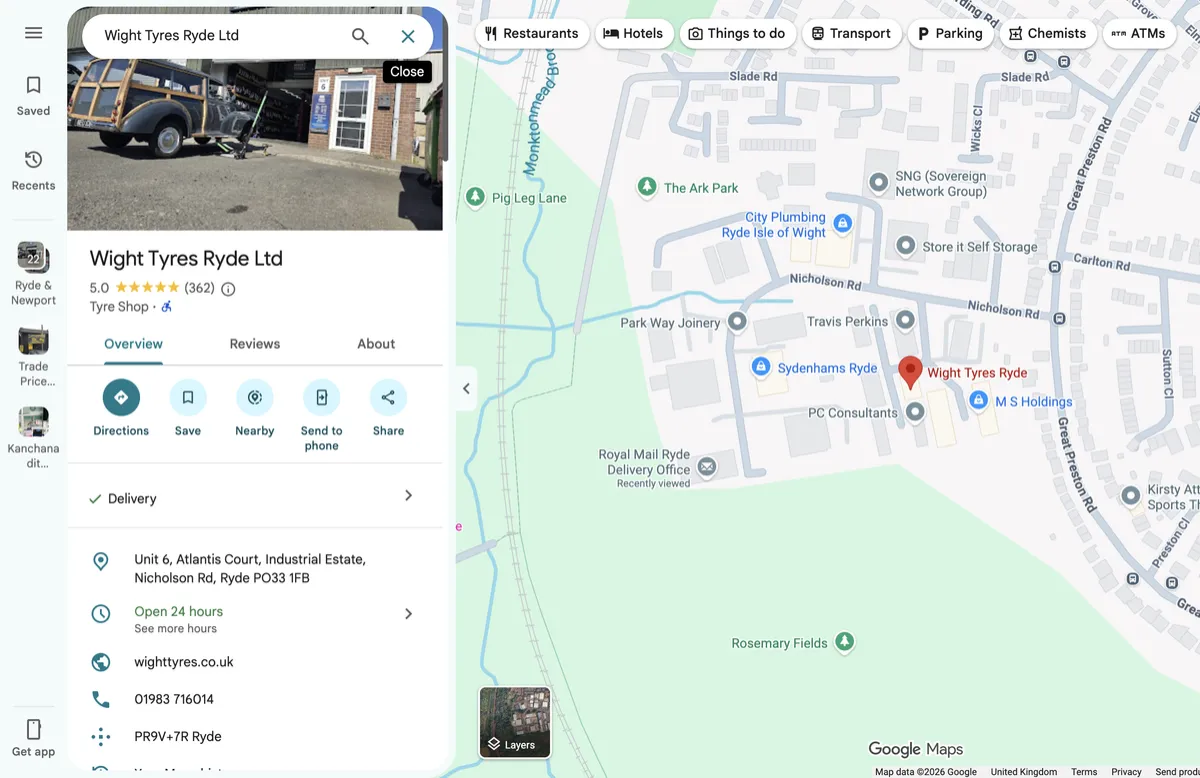
Want a closer look? Right-click the image and select “Open Image in New Tab” to view it at a larger size.
If you find your business
If the listing belongs to your business but hasn't been claimed, Google may offer an option labelled "Claim this business".
Select that option and follow Google's instructions.
You may then see "Manage now" and be asked to verify that you're authorised to manage the business.
Verification simply means providing Google with evidence that the business is genuine and that you have permission to manage its information.
We'll cover verification in more detail in Section 8.
What if somebody else already manages it?
If Google indicates that another account manages the listing, don't create a duplicate.
You can request access through Google's ownership process.
This might happen if a previous employee, business partner or marketing company originally set up the profile.
Google explains how to request ownership here:
If your business isn't listed
If you've searched carefully and can't find an existing listing, you're ready to create one.
Visit Google's official setup page: https://business.google.com/add
Choose "Add your business to Google" and follow the instructions.
In the next section, we'll look at choosing your business name and category correctly.
4. Enter your real business name and choose a category
Now that you've checked your business isn't already listed, it's time to start creating your Google Business Profile.
Visit Google's official setup page:
https://business.google.com/add
Google will ask you to enter your business name and choose a business category.
Enter your business name
Use the name your customers actually know your business by.
For example, if your business is called Smith's Plumbing, enter:
Smith's Plumbing
Don't add extra words simply because you think they'll help you appear higher in Google searches.
For example, avoid turning Smith's Plumbing into:
Smith's Plumbing – Best Emergency Plumber in Ryde and Newport
Google expects your business name to reflect the name you genuinely use in the real world, such as on your signage, website and business documents.
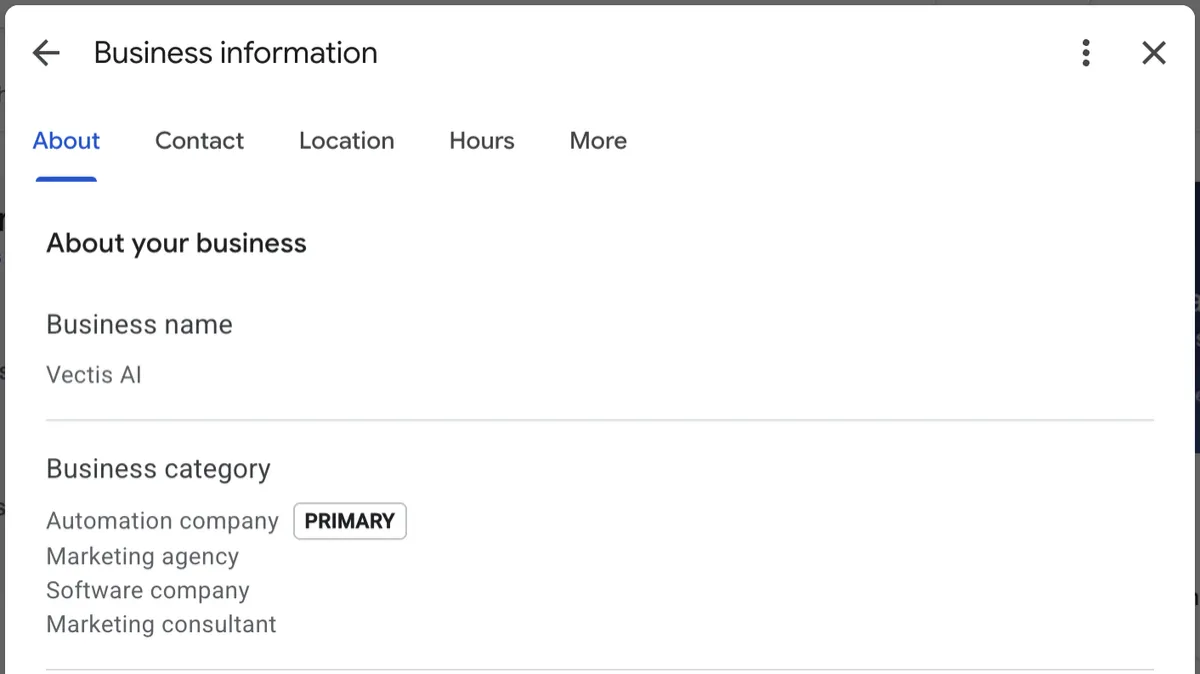
Choose the category that best describes your business
Google will also ask you to choose a business category.
A category is simply Google's way of understanding what type of business you operate.
Start typing what your business does, and Google will suggest categories you can select.
For example:
A hair salon might choose "Hair salon".
A plumbing business might choose "Plumber".
A tyre-fitting business might choose "Tyre shop" if that's the category Google offers.
Choose the category that most accurately describes your main business activity.
Don't worry if your business provides several different services. You can add other relevant categories later.
Why your main category matters
Your main category, sometimes called your primary category, helps Google understand which searches your business is relevant to.
For example, a business specialising in tyre fitting shouldn't choose "Car dealer" simply because both involve cars.
Choose what your business actually does, rather than what you think might attract the most visitors.
If you're unsure, think about the main reason customers contact you.
That's usually a good starting point.
Before moving on
Check that your business name is written correctly and that you've chosen the most suitable category.
These details can be changed later, but it's much easier to get them right from the beginning.
Next, we'll look at one of the most important decisions in the setup process: whether customers visit your business address or you travel to them.
5. Decide whether customers visit your business address
Google needs to know whether customers come to your business premises or whether you travel to them.
This is an important decision because it determines whether your business address appears publicly on Google Maps and in Google Search.
If customers visit your business premises
If you operate from a shop, salon, garage, office or other location where customers can visit you during your stated opening hours, you can usually display your business address.
For example: A tyre-fitting garage where customers bring their vehicles.
A hair salon where customers attend appointments.
A shop where customers browse and buy products.
Make sure the address is accurate and that your business genuinely operates from that location.
If you travel to your customers
Many small businesses don't have premises that customers visit.
For example:
A plumber who uses their home address for business purposes but travels to customers to carry out the work.
An electrician who travels to different jobs.
A mobile hairdresser who visits clients in their homes.
Google calls this a service-area business.
You can tell Google which areas you serve without displaying your home address publicly.
If customers don't visit your business address, you should hide it from your public profile.
This is particularly important if you run your business from home.
What if you do both?
Some businesses have premises that customers visit but also travel to customers.
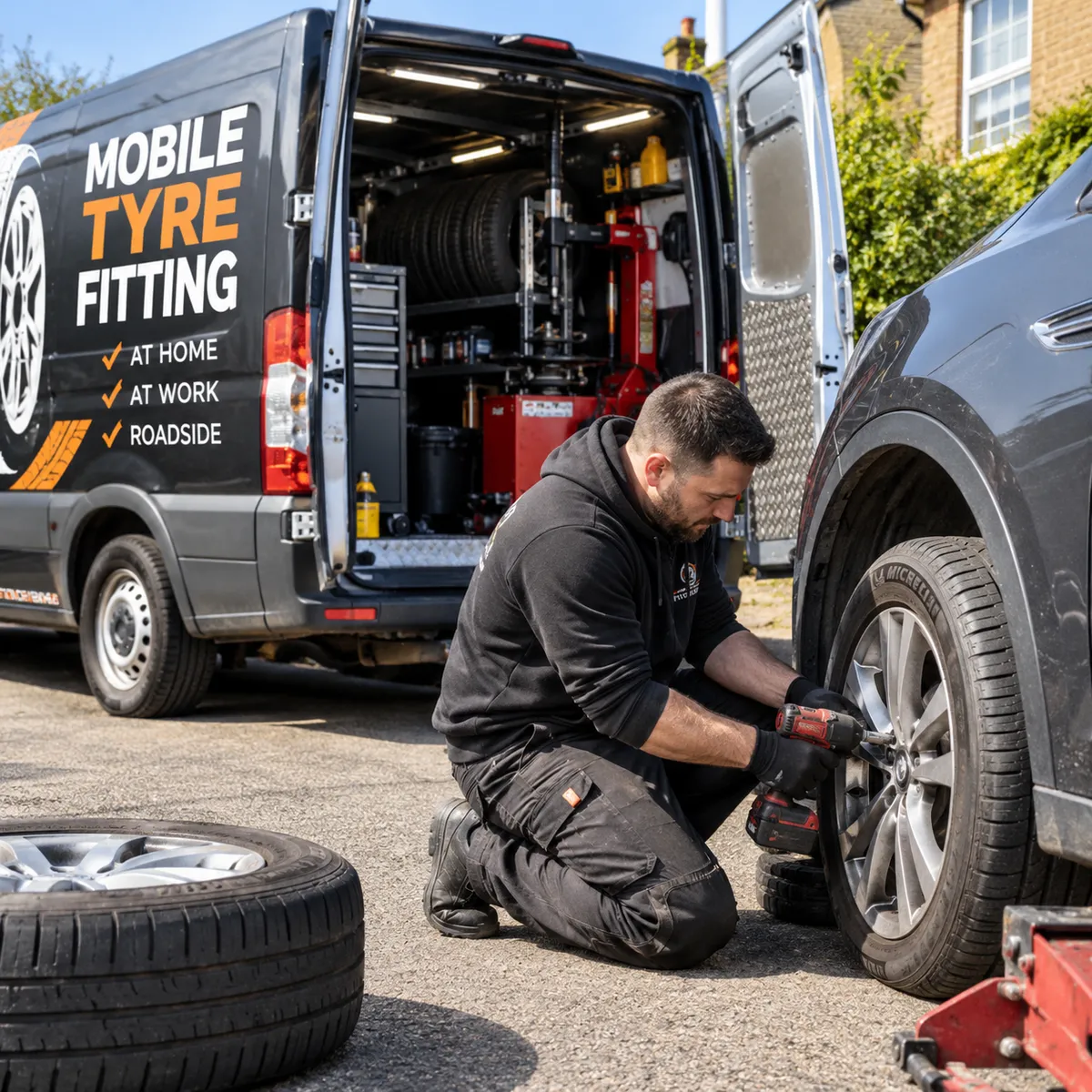
For example, a garage might have a workshop where customers bring their cars while also offering mobile tyre fitting.
Google allows eligible businesses to show their business address and specify the areas they serve.
This is sometimes called a hybrid business.
Only display your address if customers can genuinely visit you there.
Don't use an address just to appear in another town
You might be tempted to use a friend's address, a virtual office or another location to make your business appear closer to customers in a particular area.
Don't do this.
Google expects your business location to represent where your business actually operates.
Using an address that doesn't meet Google's requirements can cause problems with your profile, including suspension.
Before moving on
Ask yourself one simple question:
"Can customers genuinely visit my business at this address during my stated opening hours?"
If the answer is yes, displaying your address may be appropriate.
If the answer is no and you visit customers instead, set up your business as a service-area business and keep your address hidden.
In the next section, we'll look at how to enter your location or the areas you serve.
6. Enter your business location or service areas
Now that you've decided whether customers visit you or you travel to them, it's time to tell Google where your business operates.
The details you enter will depend on the type of business you run.
If customers visit your business
Enter your full, accurate business address when Google asks for it.
This should be the genuine location where customers can visit you during your stated opening hours.
For example, if you run a tyre-fitting garage in Ryde, enter the address of your actual workshop.
Google may also ask you to confirm your location on a map.
Check that the map pin is in the correct position, particularly if your premises are on an industrial estate, down a side road or within a larger business complex.
An incorrectly positioned pin could send customers to the wrong entrance or even the wrong building.
If you travel to your customers
If you're a service-area business, Google will ask you to specify the areas you serve.
For example, a mobile tyre fitter based in Ryde might serve customers in:
Ryde
Newport
Cowes
Sandown
Shanklin
You can enter towns, cities, postcodes or other geographical areas that Google recognises.
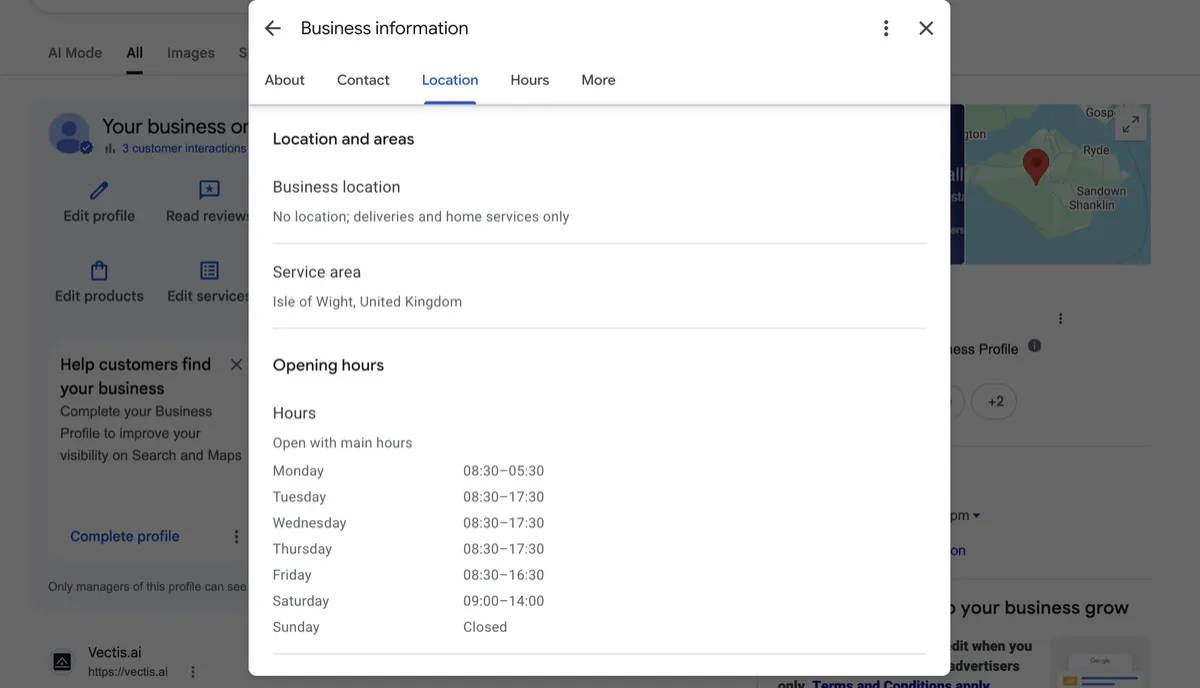
Google currently allows you to specify up to 20 service areas.
Choose places you genuinely serve rather than adding distant locations simply to attract more customers.
You don't need to list every village individually.
Choose areas that give customers a sensible understanding of where you're prepared to travel.
How far should your service area extend?
Think about how far you're realistically willing to travel to carry out a job.
For example, an electrician based in Newport might cover the whole Isle of Wight, while a mobile hairdresser might prefer to work within a smaller area.
Google recommends that the overall service area generally shouldn't extend much beyond approximately two hours' driving time from your business base.
This is guidance rather than a promise that you'll appear in searches throughout the entire area.
Importantly, adding more service areas doesn't automatically make your business rank higher in those places.
If you have a shop or workshop and also visit customers
If customers can visit your premises and you also provide services at their locations, you may be able to display your business address and add service areas.
For example, a garage with a workshop might also offer mobile tyre fitting across the Isle of Wight.
Make sure both the address and service areas accurately reflect how your business operates.
Before moving on
Check that your business address is correct, if you're displaying one.
If you've entered service areas, make sure they're places where you genuinely provide your services.
Remember that you can update these details later if your business changes.
Next, we'll look at adding your phone number and website so customers can get in touch with you.
7. Add contact details customers can use
Now that you've entered your business location or service areas, it's time to make sure customers can contact you easily.
Google may ask for your business phone number and website address during setup.
These details help customers get in touch when they find your business on Google Search or Google Maps.
Add your business phone number
Use a phone number that customers can reliably reach you on.
For example, if you're a self-employed electrician, you might use your business mobile number.
If you have a shop or office, you might prefer a landline.
The important thing is that the number genuinely belongs to your business and is regularly answered.
Double-check every digit before continuing.
A simple mistake could mean potential customers can't reach you.
Add your website address
If your business already has a website, enter its full address.
For example: https://www.yourbusiness.co.uk
Make sure the link works and takes visitors to your actual business website.
Don't use a website belonging to another business or a page that doesn't represent your own services.
If your business has social media pages, you may also be able to add links to profiles such as Facebook, Instagram or LinkedIn.
Look for the "Social profiles" option in your Google Business Profile settings.
Only add accounts that genuinely belong to your business, and don't worry if you don't use social media or the option isn't available to you.
What if you don't have a website?
Don't worry.
You can still create a Google Business Profile without having your own website.
A website can be useful because it gives customers somewhere to learn more about your services, see examples of your work and make enquiries.
But you don't need to delay setting up your Google Business Profile while you arrange one.
You can add your website address later.
Before moving on
Check that your phone number is correct and that your website link works, if you've added one.
Think about what happens when a customer tries to contact you.
Can they get through easily, or leave an enquiry if you're busy?
Next, we'll look at how Google verifies that your business is genuine.
8. Verify your Google Business Profile
Google needs to confirm that your business is genuine and that you're authorised to manage its profile.
This process is called verification.
It's an important step because it helps protect businesses and customers from fake or misleading listings.
How does Google verify your business?
Google will show you the verification method or methods available for your business.
These can vary depending on your business type, location and other factors.
You might be asked to verify using:
A video recording of your business.
A phone call or text message.
An email.
A postcard sent to your business address.
A live video call with a Google representative.
You may be offered one method or several, and Google sometimes requires more than one verification step.
You cannot always choose your preferred method.
If Google asks you to record a video
Don't panic.
This is a normal verification method.
Google may ask you to record a short video using your mobile phone to demonstrate that your business genuinely exists and that you manage it.
The video must be recorded continuously, without editing.
Depending on your type of business, Google may ask you to show evidence such as:
Your business premises, signage or surrounding location.
Tools, equipment or a branded work vehicle.
Access to areas or equipment that only someone running the business would normally have.

For example, a mobile tyre fitter might show their work vehicle, tyre-fitting equipment and other evidence that they operate the business.
A shop owner might show the shopfront, business signage and access to staff-only areas.
Follow the instructions Google gives you, as the evidence required can vary.
What if you operate from home?
You don't necessarily need a shopfront or public business premises to complete verification.
If you visit customers rather than receiving them at your business address, Google may ask you to demonstrate that you genuinely operate your service-area business.
For example, a plumber might show their tools, work vehicle and business documents, depending on Google's instructions.
Remember that verifying your business address does not mean you have to display your home address publicly.
How long does verification take?
The time required depends on the method Google uses.
Some methods can be completed quickly, while others involve waiting for a code or for Google to review your evidence.
For video verification, Google says its review can take up to five business days.
Follow the instructions shown in your profile and check for updates.
What if verification doesn't work?
If your first attempt is unsuccessful, don't assume you've done something seriously wrong.
Check the message Google provides.
You may need to submit clearer evidence, repeat a step or use another method if Google offers one.
Avoid creating a second business profile simply because you're having trouble verifying the first.
Google provides official troubleshooting guidance if you get stuck:
Before moving on
Complete the verification steps Google asks you to follow.
If Google needs time to review your information, you can return to your profile later to check its status.
Once your business is verified, you're ready to make your profile more useful to potential customers by completing the remaining business details.
9. Complete the details that help customers choose your business
Getting your Google Business Profile verified is an important achievement, but there's still a little more to do.
Think of your profile as a shop window.
The more useful and accurate information you provide, the easier it is for potential customers to decide whether your business is right for them.
You can add many of these details during setup, and you can return to update them later.
Add your opening hours
Enter your normal opening hours and keep them accurate.
For example, a garage might open Monday to Friday from 8:30 am to 5:30 pm, while a restaurant might have different opening hours for each day.
If your hours change for bank holidays or other special occasions, update them in your profile.
For businesses that visit customers, enter hours that accurately reflect when you're available to provide your services.
Write a helpful business description
Google lets you add a description explaining what your business does.
Keep it straightforward and write for your customers, not for a search engine.
For example, a local electrician might write:
"We provide electrical installations, repairs and maintenance for homes and small businesses across the Isle of Wight. Our services include fault finding, lighting installations, consumer unit replacements and electrical safety inspections."
Explain your main services, what makes your business useful and where you operate.
Avoid exaggerated claims, long lists of keywords and promotional offers.
Need help writing your business description?
Try our free AI Description Generator below.
Enter a few details about your business and let AI do the writing.
You can edit the result before copying it straight into your Google Business Profile.
No sign-up needed!
Add your services
Depending on your business category, Google may let you add individual services to your profile.
This is particularly useful for tradespeople and other service-based businesses.
For example, a plumber might add:
Boiler servicing
Radiator installation
Leak repairs
Bathroom plumbing
Emergency plumbing repairs
Only list services you genuinely provide.
Where available, you can also add a short description or price information to help customers understand what's included.
Add genuine photographs
Photographs help potential customers see what your business looks like and the type of work you do.
You don't need professional photography equipment.
A modern smartphone can take perfectly good photographs.
Depending on your business, useful photographs might include:
Your shopfront, workshop or business premises.
If customers visit your premises, include a clear photograph of the outside of your building, preferably showing your entrance and signage.
This helps people recognise your business when they arrive, especially if it's somewhere that's not immediately obvious from the road.
Your team carrying out their work.
Examples of completed projects.
Your tools, equipment or work vehicles.
Products you sell or services you provide.
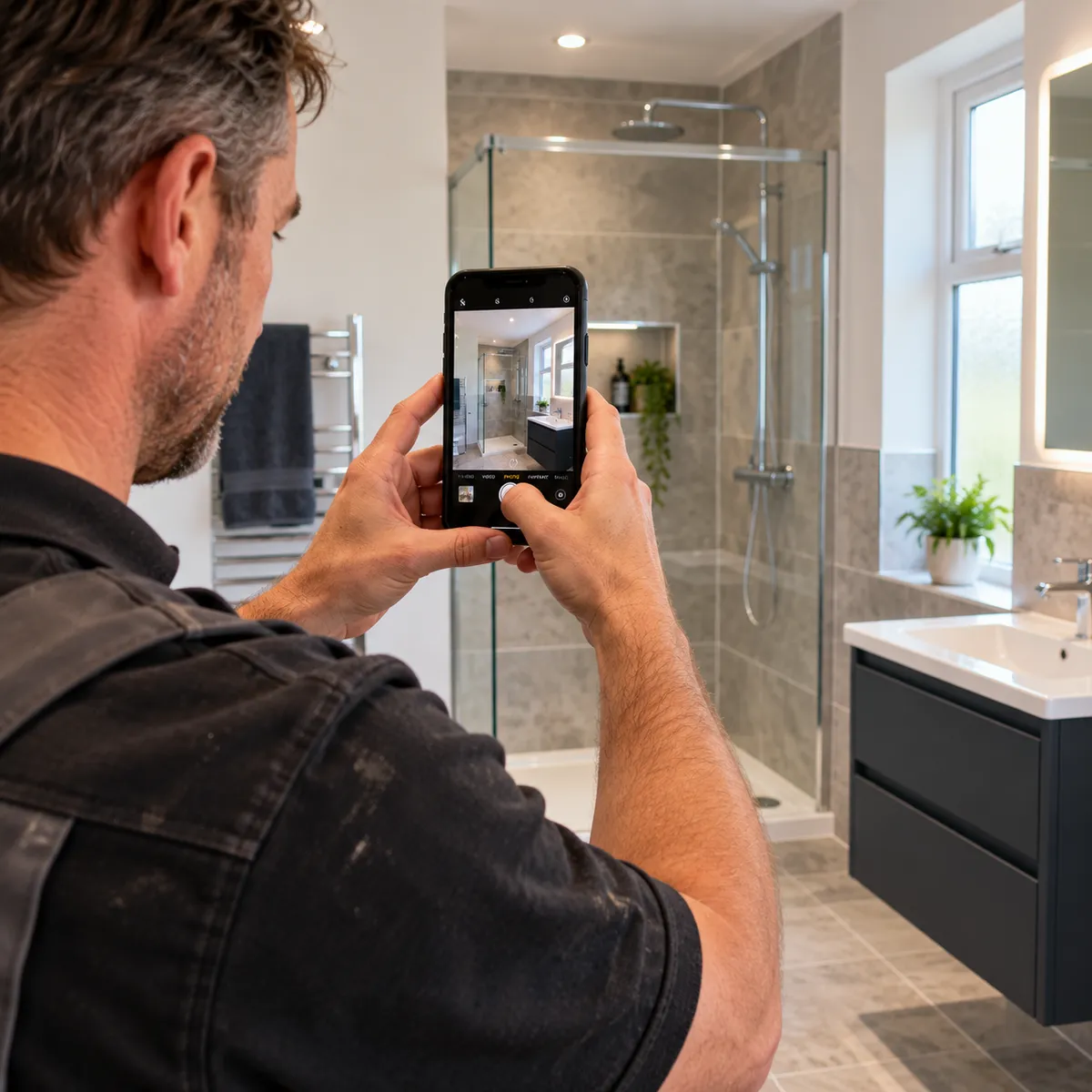
For example, a decorator could upload photographs of completed rooms, while a landscape gardener might show finished patios or garden transformations.
Use clear, genuine photographs that accurately represent your business.
Avoid misleading images or photographs that make your business appear to offer something it doesn't.
Check for other useful features
Google offers different profile features depending on the type of business.
You may see options for appointments, booking links, products, menus or other information relevant to your industry.
You don't need to use every available feature.
Concentrate on the ones that make it easier for customers to understand your business and take the next step.
Keep your information up to date
Your Google Business Profile isn't something you should set up once and then forget about.
If your phone number, opening hours, services or business details change, update your profile.
It's also worth adding new photographs occasionally, particularly when you've completed work you're proud of.
Accurate, useful information helps customers know what to expect when they contact you.
Before moving on
Take a few minutes to look through your profile.
Have you added your opening hours, a helpful description, your main services and some genuine photographs?
Don't worry if you haven't got everything ready today.
You can return and improve your profile over time.
In the final step, we'll check how your business appears to customers on Google Search and Google Maps.
10. Check your Google Business Profile as a customer
You've entered your business details, completed verification and added useful information.
Now it's time to see what potential customers will actually see.
The easiest way to do this is to look for your business on Google Search and Google Maps, just as a customer might.
Find your business on Google
Open Google Search or Google Maps and search for your business name.
If your business has a common name, you may need to include your town or location.
For example, instead of searching for "Smith's Plumbing", try "Smith's Plumbing Ryde".
If your profile is newly verified, don't worry if it doesn't appear immediately.
It can take time for your business information to become visible or for recent changes to appear.
Check the important details
When you find your profile, look at it as though you've never heard of your business before.
Ask yourself:
Is the business name correct?
Does the main business category accurately describe what you do?
Are the phone number and website link correct?
Are the opening hours accurate?
If customers visit your premises, is the address correct and can they find the entrance?
If you travel to customers, are your service areas appropriate and is your home address hidden if it shouldn't be public?
Do the photographs give a clear and honest impression of your business?
Can someone quickly understand what services you provide?
Try clicking your website link and calling your business number to make sure they work.
Check your business on a mobile phone
Many customers will discover your business while using their phones.
Open Google Maps on your phone and look at your profile.
Is it easy to find your phone number?
Can someone get directions to your premises if you welcome customers there?
Does your website open properly on a mobile screen?
Can customers quickly work out whether you offer the service they need?
You don't need to be a technical expert to do this.
You're simply checking whether the information would be helpful if you were the customer.
Ask someone else to take a look
It's surprisingly easy to overlook mistakes in information you've entered yourself.
Ask a friend, family member or colleague to find your business on Google and tell you what they think.
Can they work out what your business does?
Would they know how to contact you?
If they needed to visit, could they find you?
Sometimes a fresh pair of eyes will spot something you've missed.
Make corrections where necessary
If you notice something wrong, return to your Google Business Profile and update the information.
Google may review certain changes before publishing them, so they might not appear immediately.
Remember that your profile is something you can improve over time.
You don't have to get every detail perfect on the first day.
You've completed the initial setup
Congratulations!
You've now worked through the main steps involved in setting up your Google Business Profile.
You've given potential customers a much better opportunity to find accurate information about your business on Google Search and Google Maps.
But setting up your profile is only the beginning.
Keeping it accurate, adding useful photographs and making the most of customer reviews can help you get more value from it over time.
Your Google Business Profile is ready — what next?
If you've followed the steps in this guide, you've made an important start towards helping local customers find your business.
You don't need to be a marketing expert, and you certainly don't need to pay somebody just to get the basics right.
The most important thing is that your Google Business Profile accurately represents your business and makes it easy for people to understand what you do, where you operate and how to contact you.
But remember, setting up your profile isn't the end of the process.
As your business grows, keep your information up to date, add photographs of your work and encourage genuine customer reviews.
Small improvements made regularly can make your profile more useful to potential customers.
Want to get more from your Google Business Profile?
Now that you've completed the initial setup, our companion article, The Ultimate Guide to Your Google Business Profile, explains how to make better use of your profile over time.
It covers practical ways to improve your business information, build trust with customer reviews and help more local people discover what you offer.
And if you haven't finished every step today, that's absolutely fine.
Save this guide and come back whenever you're ready.
The important thing is to get started.
Copyrights 2026 | Vectis Auto AI™ | Terms & Conditions | Cookie Policy | Privacy Policy